|
What's New Now ?
Latest changes to Cadrail 9 by Version
Version 9.51 6-1-13
* Improved: Drawing Manager - Drawing Tree and Library tab:
The correlation between drawing manager object data, tree display and the current selected object
has been improved. Now
only parent figures are shown in the top tree node (or column). Prior versions
displayed parent and child figures in the first node.
Now the child is only shown below the parent by expanding the parent
node (click the + next to the item).
Its now easier than ever to edit a child figure (and single objects) embedded within
parent figures.
Select the child in the Drawing Tree and it will be highlighted in
freehand edit mode in the the drawing area. Use the handles to move,
rotate, or resize. Double click a child in the Drawing Tree to open
the Figure Editor to change other properties like fill etc.
* Improved: Edit Freehand - Figures: added move handle (lower
left white square) similar to single object move handle. This handle
allows a Child Figure to be moved within the parent. Select Child
Figure using Drawing Manager Drawing Tree.
* New: Help Menu item - Launch PDF manual.
* Freehand Move:
- corrected problem selecting and then dragging figures
- corrected problem using get end with figures
* Arc Project tool revived (was removed in version 9.50)
* Figure Create, Remove: modified behavior.
* Printing - corrected problem printing arc radius point labels.
May 9, 2013 Version 9.50
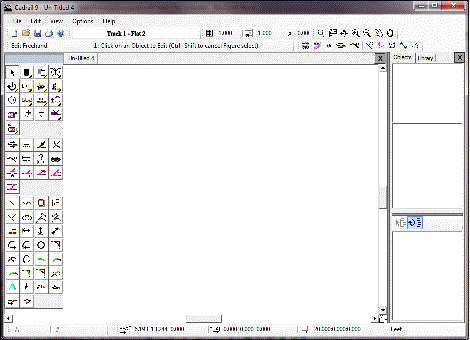
Improved: Drawing Toolbar
-Shows all tools making it easier to select a tool
and eliminates steps. Several tools combined into one.
-Ctrl+RMB moves drawing tool bar to click
point.
-New item on RMB popup menu to move drawing
tool bar to click point
-New button appears upper left when Drawing Toolbar
is moved.. Button returns Drawing Toolbar to upper left home.
-New shortcut key Ctrl+X returns Drawing Toolbar to
upper left home .
New Auto-Select: creation tools will highlight the
new object in edit freehand mode when auto select is on (top tool bar
bar button next to auto trim). Use the tool normally to create an
object or drag the the handles to edit freehand. This eliminates
clicking free-hand edit in some cases.
Improved tools:
-Edit Dual Use tools - All edit tools now dual use
(CAD or Freehand mode)
when appropriate and located at top of drawing tool bar
-Arc between lines, line/arc, arc/arc tools have
been combined into one tool - ARC FILLET based on objects selected.
-Line Multiple - use alt+ with the first
mouse click to make
a figure and/or
ctrl+ to enter elevation (replaces previous Figure
Polyline)
-Line Rectangle - alt+ to make
figure, ctrl+ size, elevation.
-Line between points tool eliminated - use Line with
shift+
-Line Project tool eliminated – use Line Tangent.
-Arc Project tool eliminated – use Arc Tangent
-Point on line, point on arc combined into on one
tool POINT ON LINE or ARC based on object selected
-Elevate, Popup: works with single object or figure
(was Figure only)
-Figure tools now located within the Edit tool
group.
-Figure Add tool combined with Figure Create. Use
Figure create for new or add to Figure.
-Figure Polyline - combined with Line -Multiple.
-Object/Figure editor - new fill child figures
checkbox fills when checked or unfills if unchecked
-Layer/Styles Editors: changed behavior when
deleting layers or styles. Now any objects using the layer/style to
be deleted will be changed to the current drawing layer/style.
Improved: Turnout, yard, shape builder combined into
one Shape Builder dialog found on Options menu and labels tool bar.
Behavior changed where you no longer click an object with the tool.
Object is inserted in the drawing center.
Improved: AutoTrim, AutoAlign, AutoSelect check
state saved with Cadrail program settings.
Improved: Units label on bottom tool bar - click for
preferences dialog which allows units to be changed
Updated documentation manual and program help file.
August 17, 2010 Version 9.09
* Corrected problem when using Windows 7 with some systems. The Cadrail
drawing background was not updating properly when using some tools like
Edit - Freehand - Extend.
Windows Vista and earlier users do not require this update but may
use it if desired.
April 20, 2009 Version 9.08
NEW LIBRARY DRAWINGS
* New Tool: In freehand edit mode, double click on an object to edit
in the Object
Editor dialog.
* New Edit - Rotate: added fixed angle settings ie 90, 180
* New Worksheet - Objects, Materials report
* Improved Arc drawing speed up to 4x, additional optimizing.
* Corrected problems when converting version 8 drawings:
-
containing recursive/corrupt figure definitions that lead to a
fatal program error or lockup. Version 9 now removes these
figures when converting the version 8 drawing.
-
corrected problems that made some figures disappear and reappear
-
corrected problems in some drawings with over 32k objects
-
improved conversion of multiple defined objects * Figures- Added additional error handling limiting the child
figures
within a
parent to 200 maximum.
* Printing- corrected problem printing very large lines that cross a
page with no endpoints on the page
* Yard Builder- Corrected problem with layout on vertical lines.
- corrected problems creating final yard leg
* Runrail - Corrected user tolerance not saved in settings.
November 26, 2008 Version 9.07
NEW LIBRARY DRAWINGS
Atlas O Scale
Aristocraft 1/2" = 1'
Lionel O Scale Fastrack + updates
Ross Custom O Scale
Bachman HO EZ Track
Fast Tracks HO, N Scales
Fleischmann HO Scale
Gargraves O Scale
Marklin HO C Track
MTH O Scale
Peco HO Code 100, 83, 75 updates
Shinohara HO Code 100, 70 updates
Walthers HO Code 83 updates
NEW FEATURES
- Drag the drawing screen with Center Mouse Button (similar to
Drag Screen on Top Tool bar). Use in combination with the center
mouse wheel zooming to easily change your view.
- Edit Menu: new Object Editor with Ctrl + T hot
key.
- Runrail: new Locomotive, tender and passenger cars.
- Text Editor: new layer selection on editor dialog
- View Menu: new Zoom to object with F9 hot key.
UPDATED
- 3d view: improved drawing track, solid line style. Now draws
ties on top of fill, rails on top of ties.
- Align tools: the aligned object elevation is changed to match the endpoint
elevation of the align to object.
- Auto-Align: now limited to figures with less than 200 objects. This
change lessens auto-align starting when not wanted.
- Copy/Move CAD mode: select in fence now available.
- Divide at Intersection: corrected problem when using two arcs that are
tangent.
- Divide at spacing: corrected problem when dividing
arcs that made the side view draw elevation wrong.
- Fast Tracks library drawing HO & N: corrected problem with
the way the turnout figures were defined that made them malfunction
with the
crossover tool. Changed to follow rule 3 for turnouts (see manual).
- Figure Create: corrected problem that allowed the same object to be
defined in two figures.
- Fill drawing on screen has been adjusted so that smaller fills
are drawn for a particular scale and fills along arcs
now match the arc more closely
- Object Editor Turnout Property: added warning to figure editor- "slopes dont match".
Now checks for rule 3 page 92 man compliance when set turnout prop first
two
objects should be straight leg of turnout, object 3 is the diverging
leg.
Turnouts will work with Runrail for Wyes, however they do not work
properly
with the Turnout tools on the Figure tool bar.
- Print Dialog: object labels are no longer shown in the preview to
avoid clutter and improve speed.
- Turnout drawing in Screen: now objects using the filled track style are drawn so
that
the fill for the diverging leg does not cover the straight leg track
(track for the straight leg is drawn last, over the fills)
March 25, 2008 Version
9.06
- File Names: corrected problem of changing the letter case
of file names when
Cadrail launched by double clicking file name in Windows File
Explorer or similar.
- Object Editor (Dialog and Drawing Manager):
- Spirals - changed behavior for updating other variables when the
radius, length, or delta of the spiral is changed. Now the length or
radius
will remain constant and a new delta angle calculated when the
length or radius is changed. When the delta angle is changed, the
length remains constant and the radius is revised. In this fashion
you can specify a Length and Radius for your spiral and see the
required Delta angle between the spiral tangents.
-Object Lengths: - added length xy and length xyz dimensions for
objects. If you change length xy, the elevations of the object
endpoints are maintained while the grade changes. If you change
length xyz, the grade is maintained while the elevation of the
endpoints change.
- Corrected problems with drawing tools:
- Vertical Line Tool: corrected problem when used with Get End.
- Spiral Fit to Tangent: corrected problem with horizontal lines.
- Spirals between Tangents tool: corrected problem when fit to upper
left corner of rectangle with trim, tangents were not trimmed
properly.
- Printing: changed grid line width when printing to make
the grid more visible.
- Corrected problem with editing locked objects: some tools
did not
ask if you want to unlock a locked object prior to editing i.e. the
delete tool could be used to delete an object from a locked figure
without Cadrail unlocking the figure. This condition produced an
error message with some tools (error 9). Now, if you delete an
object from a locked figure, the parent figure will be unlocked.
- All Line, Circle and Spiral tools are now full 3d aware.
In past versions, for some tools, the elevations were not
calculated. Now, for example, when you fit an arc to two tangent
lines, the elevation (z coordinate) is calculated based on the
elevations of the existing lines. When possible, the existing grades
are maintained, i.e. a line created tangent to an existing arc will
be given the grade of the existing arc and an elevation at the
tangent point (PC) is calculated for the line on the circle.
Specific cases:
- Line/arc trim with tools: i.e. Arc tan to arc with trim tool, all
elevations adjusted to maintain the original arc grade (only applies
to tools with full 3d implemented).
- Spiral fit to tangent tool: the new Spiral is given a TS elevation
on the selected tangent line at the TS intersection. The new Spiral
is given the grade of the tangent line.
- Spiral parallel to tangent: the new Spiral is given a TS elevation
of the selected arc endpoint at the SC intersection. The new Spiral
is given the grade
of the arc.
- Zoom - Show all Objects now includes Trace bitmap if
loaded.
- Input dialog - corrected problem where
feet/inches/fraction boxes were hidden
when units are set to metric, then switch units to feet, boxes were
still hidden
when should be visible. Now the boxes are made visible again.
- Spirals drawn in 3d: corrected problem drawing spirals
with filled roadbase in 3d.
- Edit freehand- Create Figure: corrected problem created
when a group of objects selected in a fence is made into permanent
figure by clicking edit -create figure button. Figures made this way
were not given a front/back position, therefore they sometimes
behaved funny until they were brought to the front.
February 5, 2008 Version 9.05
- Corrected problem drawing the Object Preview on the
Drawing Manager after selecting an object (introduced in version
9.04 only).
- Changed name of Line Style- Solid to Continuous (Styles
Editor).
February 2, 2008 Version 9.04
- Corrected problem that prevented Cadrail from starting
properly (loading DirectX 9c) on 64 bit operating systems.
- Changed pop up figure behavior. In previous versions of
Cadrail, when you use the Popup Figure tools, the new objects were
added to the original figure. In version 9.04 this has been changed.
Now a new figure is created with the original Figure maintained as a
child figure.
- Added Phantom Line Style - This new style acts the same as
the Single Line style in 2d but it is not drawn in 3D. Use for edges
of filled figures when you don't want to see the outlines in 3d.
- Corrected problem with some spirals with real flat angles
(may need to redraw spiral in 9.04)
Jan. 4, 2008 Version 9.03
Changed drawing library folder installation location.
How Cadrail installs the library drawings on your system has been
changed in Version 9.03. This change requires that the older Cadrail version 9 be removed
from your system prior to installing the new Cadrail 9.03 program.
In version 9.03 (and later), when the
current user (that's YOU) starts Cadrail for the first time after
installing the software, a dialog will appear to allow you to
specify a location for the personal user library. Then a personal
copy of the drawing libraries will be created for that user only.
This user can then edit or delete or whatever they want with the
files, and other user libraries are not affected. The user libraries
are NOT removed when you un-install Cadrail 9.03 (when you
un-install 9.02 or earlier the library will be removed).
If you need to re-install the drawing libraries after installing
Cadrail 9.03, or you elected not to install them the first time you
started Cadrail, you can do it anytime using the Cadrail menu
OPTIONS - PREFERENCES - PROGRAM SETUP TAB - click REINSTALL
LIBRARIES button.
Corrected problem with Options - Optimize Drawing.
When optimizing some drawings the Positions were not correctly
updated.
December 26, 2007 Version 9.02
* New 3d view WALKTHOUGH mode. This mode is similar to BEV
(select WALK button next to BEV button on 3d view) however the view
degrees of freedom are slightly different:
BEV - Move left mouse button Left/Right - rotates model
left/right
- Move left mouse button Up/Down - rotates model
up/down
WALK - Move left mouse button Left/Right - rotates your view
left/right
- Move left mouse button Up/Down - rotates your view
up/down
* New 3d View LIGHTING - now a LIGHTS option button on tool
bar. When on the 3d view will show shading based on a fixed light
source. You can see in the sample view below that you can see
each side of the timbers because each face is shaded based on the
light source angles. When the lights are off (left view) you cant
see the sides because they are both the same color.
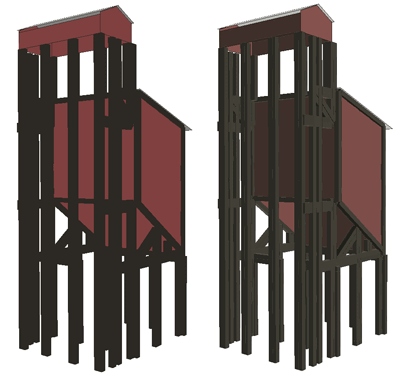
The view on the right has LIGHTS option turned on.
Note how the timber members are shaded on the sides.
* 3d View - Engineers view angle. When in CAB view mode,
the scroll bar next to the CAB button is active and is the view
angle with relation to the engine. To look back rotate the angle to
180, look to the side 90, look front 0, look anywhere in between.
This was a button in earlier version that
only looked back to 180 or forward 0.
11-26-07 all versions
Applies to:
- Foreground/Background options may be disabled (grayed) on
the Figure Editor dialog box.
- Edit - Position Front/Back tool (manual page 209).
- Object (Figure) Editor - Foreground/Background fill option
(manual page 94).
- Tutor Example 4 (manual page 71).
On page 94 of the manual, it shows how you can position objects
on top or below each other using the Foreground/Background fill
option for Figures. However this method is sometimes limiting as it
only applies to filled Figures. Therefore, this method has been
replaced. You now position all objects and
figures the same way using Edit - Position - Front/Back. You
can still use the old way if you set it for the drawing in Options -
Preferences - Drawing Setup Tab. At the bottom of the dialog you can
select the old Foreground/Background method.
When you create a new drawing in version 9 it will be set to the
new way by default. This is now the preferred setting. If you open
the Figure Editor dialog when the default position is used, the
Foreground/Background options will be disabled (grayed). You don't
need them anymore.
In Example 4 of the manual tutorials,
on page 71 steps 4, 5, 6, 7, you are instructed to use the
Foreground/Background options. But, when you go to the Figure Editor
are the Foreground/Background options are be disabled (grayed).
Instead use the Edit - Position tool.
Manual page 71
Replace steps 4, 5, 6, 7 with the following:
4. Select the Edit -
Position - Send to Back menu item.
Done! Now isn't that easier?
|